Gemini CLI in VS Code runs in the integrated terminal and connects through Google’s Companion extension. Enable it with /ide enable to receive editor context and review proposed file changes in the native diff viewer, then use /ide status to check the connection.
Run Gemini CLI in VS Code’s integrated terminal, install the Gemini CLI Companion extension and enable the connection with /ide enable. The CLI can then use editor context and open proposed changes in VS Code’s diff viewer. Installation and connection are separate steps, so an installed extension alone does not establish an active connection.
Documentation checked October 10, 2026. This guide follows Google’s IDE integration documentation and Companion marketplace listing; it describes documented behaviour rather than a hands-on test.
On this page
Requirements and the right terminal
Google’s marketplace listing requires VS Code 1.99.0 or newer and Gemini CLI installed separately, running inside the integrated terminal. The Companion extension pairs with the CLI; it does not replace the CLI installation.
Open your project folder in VS Code before starting the CLI. Google’s troubleshooting guide distinguishes a missing workspace from a directory mismatch: the CLI’s working directory must belong to the workspace open in the editor.
If you need to update the CLI first, use the installation-method instructions in our Gemini CLI update guide. Then return to the integrated terminal for the editor connection. Running the same CLI from a separate external terminal is not the documented setup for this integration.
Source: Google Companion requirements and IDE setup.
Install and enable the Companion
When Gemini CLI detects a supported editor, it can prompt you to connect. Google’s guide says accepting that prompt installs the appropriate extension and enables the connection.
If you dismissed the prompt, run this command inside Gemini CLI, rather than as a shell command:
/ide install
The CLI finds the extension for the detected editor. You can also install Gemini CLI Companion, published by Google, from the VS Code Marketplace. For compatible VS Code forks, Google’s guide points to the Open VSX Registry.
After manual marketplace installation, activate the integration:
/ide enable
The distinction matters when diagnosing a disconnected session. Installing adds the extension; enabling tells the CLI to attempt the connection. If the extension was installed while a terminal was already open, Google’s troubleshooting instructions call for opening a new terminal so it picks up the correct environment.
Source: Google installation and connection commands.
Check the connection and context
Use the status command inside the CLI:
/ide status
Google says a connected status identifies the IDE and lists the recently opened files the CLI knows about. This gives you a direct check of the connection before asking for a change.
The documented editor context consists of:
| Context | Documented scope |
|---|---|
| Recent files | The 10 most recently accessed files in the workspace |
| Cursor | The active cursor position |
| Selection | Selected text, up to 16 KB; longer selections are truncated |
| Status file list | Local files on disk within the workspace |
Source: Google IDE context and status documentation.
This is a bounded editor-context feed. Seeing a file in the status list does not mean every file in the repository was supplied through that feed. For a task involving a longer selection, the truncation limit matters: do not assume the full selection arrived.
Review a proposed change
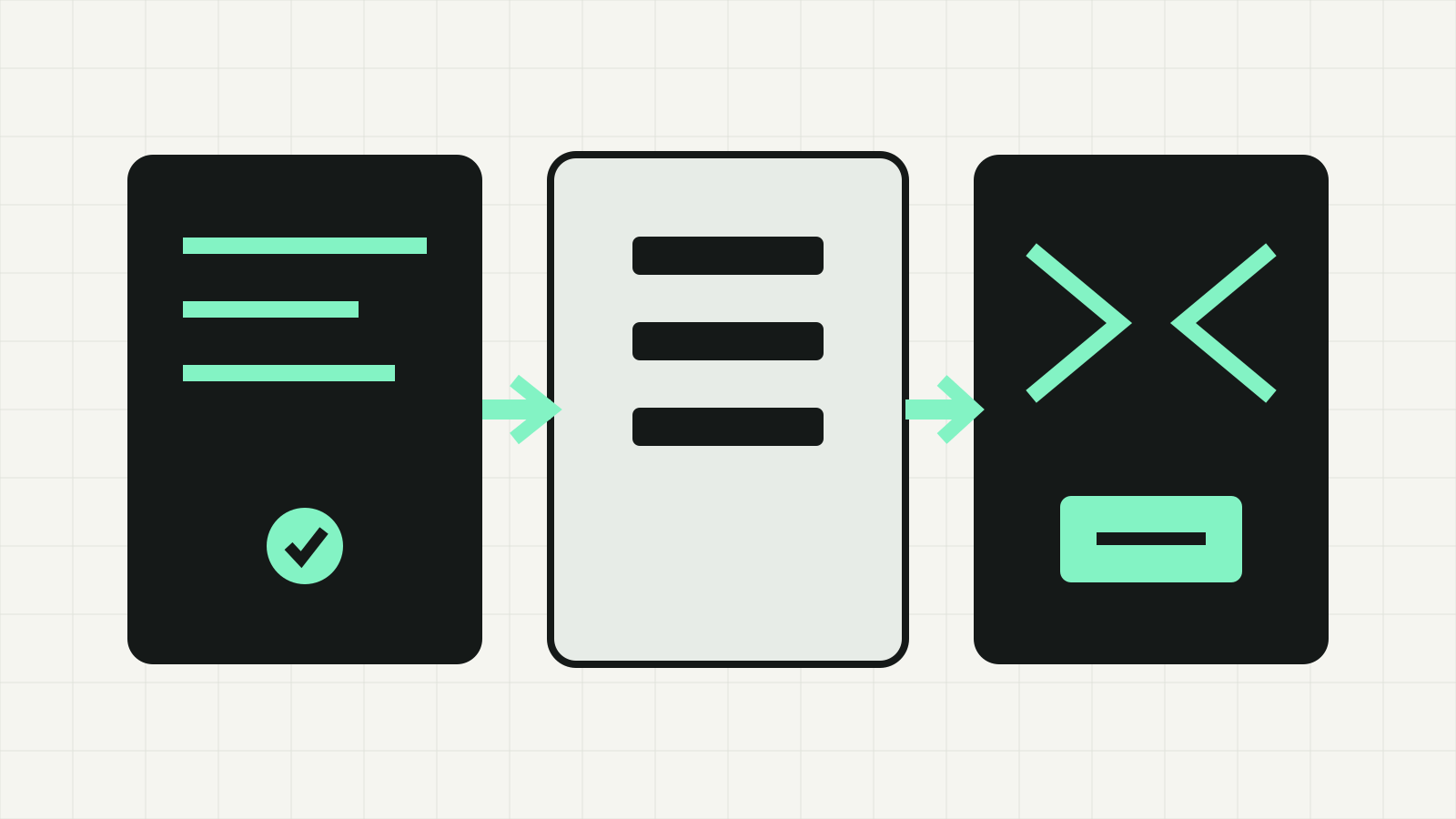
When Gemini proposes a file modification, the integration can open it in the editor’s native diff viewer. Google’s guide says you can edit the suggested changes before accepting them.
To accept the active diff, the documented options include clicking its checkmark, saving the file with Ctrl+S or Cmd+S, running Gemini CLI: Accept Diff from the Command Palette, or answering yes in the CLI.
To reject it, use the diff editor’s x, close the diff tab, run Gemini CLI: Close Diff Editor, or answer no in the CLI.
Saving is therefore an acceptance action in this flow. If you are still deciding whether to apply the proposal, inspect the diff before using the save shortcut.
Google also documents a different behaviour for Yes, allow always: subsequent changes are automatically accepted and no longer appear as IDE diffs. A missing diff can reflect that choice, rather than a broken editor connection.
Source: Google diff review and auto-accept behaviour.
Commands in one place
| Command or palette action | Purpose |
|---|---|
/ide install | Install the appropriate Companion extension |
/ide enable | Enable the CLI’s IDE connection |
/ide status | Inspect connection status and received editor context |
/ide disable | Disable the IDE integration |
| Gemini CLI: Run | Start a CLI session in the integrated terminal |
| Gemini CLI: Accept Diff | Accept the active proposed diff |
| Gemini CLI: Close Diff Editor | Reject and close the active diff |
Source: Google IDE integration commands.
Fix the specific connection error
Start with /ide status and the actual error message. Google’s documented fixes depend on what failed.
Failed to connect to the Companion extension: confirm the extension is installed and enabled, then open a new integrated terminal. Google associates this error with missing GEMINI_CLI_IDE_WORKSPACE_PATH or GEMINI_CLI_IDE_SERVER_PORT environment variables.
Directory mismatch: move into the workspace directory shown by the error and restart the CLI. Do not solve a directory mismatch by changing unrelated connection settings.
No workspace folder: open a project folder in the editor and restart the CLI.
Connection lost: run /ide enable again. Google’s next options are a new terminal or an IDE restart.
No installer available: install the Companion manually through the editor’s marketplace, then enable the connection from the CLI.
Source: Google troubleshooting reference.
Sandboxed sessions
Google documents two environment details. On macOS, the IDE integration needs network access to communicate with the Companion, so its Seatbelt profile must allow that communication. In Docker or Podman, the CLI normally finds the host’s IDE server through host.docker.internal; the container networking must permit the connection.
These are connection requirements, not instructions to turn off sandboxing. Diagnose the specific communication path rather than treating an editor connection failure as a reason to remove all isolation.
Source: Google sandbox integration notes.